Choose Pro for Kick
Kick support is part of Pro, not the free Lite bot. Check the current pricing and platform availability before subscribing. A supported platform does not mean every social account can receive outbound posts.
Configure and test the source
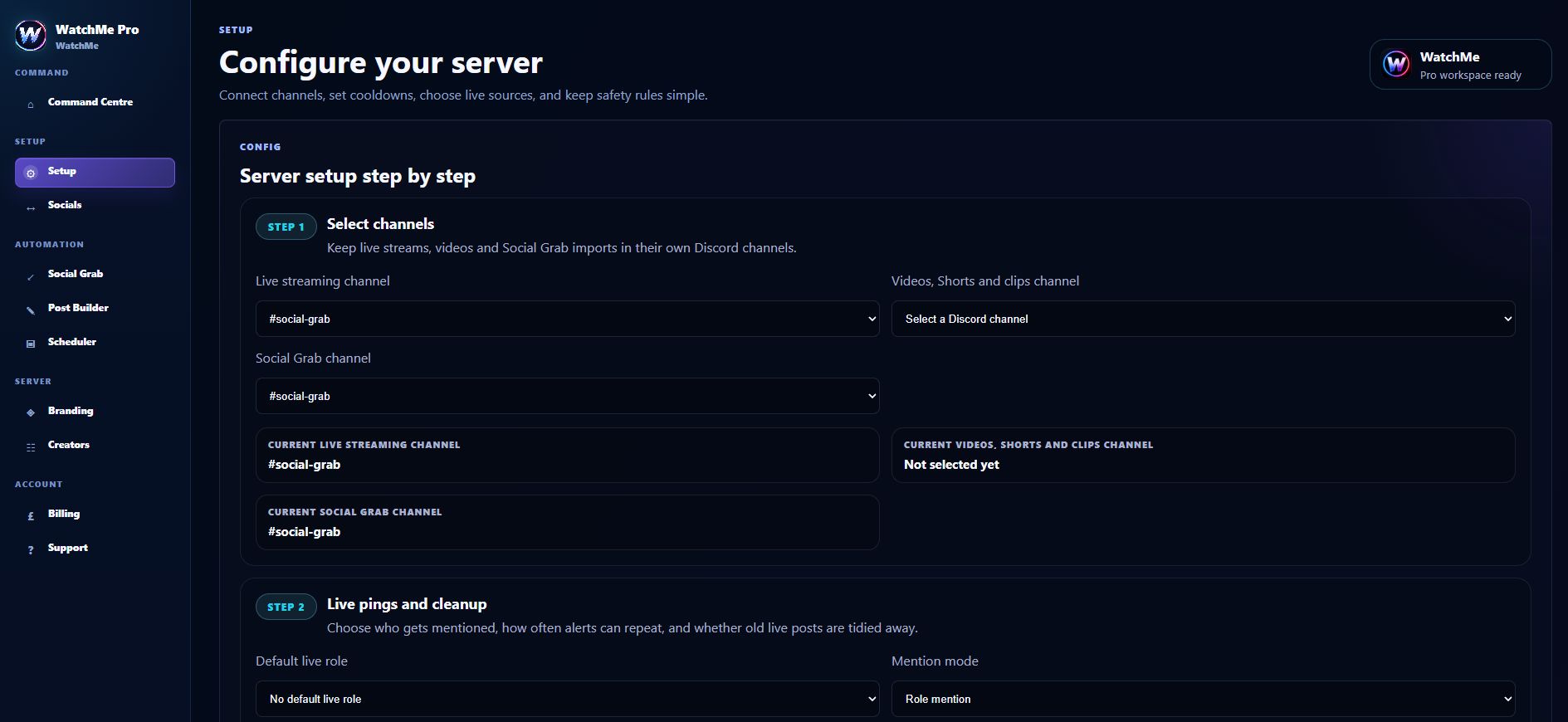
Sign in with Discord, choose a manageable server and add the exact Kick channel URL to the creator setup. Approve and enable the source, select the alert channel and save. Confirm send-message and embed permissions, then test a new live session.
Control combined alerts and cleanup
When a creator streams on multiple supported services, nearby events can form a combined card with destination buttons. Events arriving outside the merge window may remain separate. Kick offline cleanup follows the server setting and can remove the whole combined card; it does not wait for every platform to end.
Frequently asked questions
Can the free bot send Kick alerts?
No. Choose Pro for Kick, or Lite for Twitch and YouTube alerts.
Will a combined card always appear?
No. It depends on matching creator configuration and how close together provider events arrive. Test your own stream setup before relying on it.