Connect your workspace
Sign in using Discord and choose a server you are authorized to manage. If it is missing, check your Discord permissions or the existing WatchMe delegation rather than sharing someone else’s login.
Add your stream channels
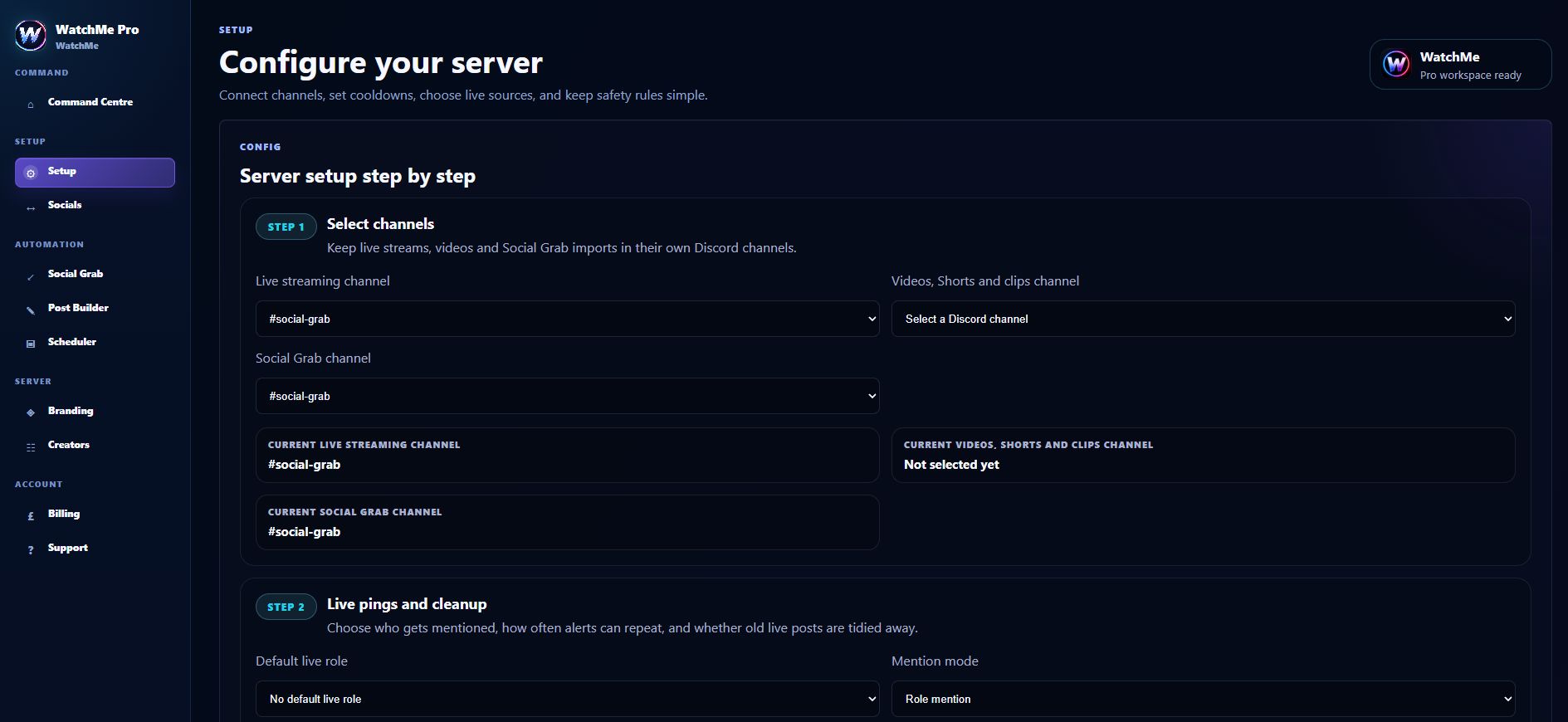
Add your Twitch, YouTube or Kick channel links and choose where live alerts should appear in Discord. Confirm the sources are approved and enabled, then test a live session.
Separate inbound and outbound content
Social Grab imports supported connected-account content into Discord. Post Builder sends your prepared content to selected destinations. Use clear channel routing and inspect loop-prevention activity so your own published content does not cycle back through automated imports.
Keep your connections ready
Check account reconnection notices and the result for each destination after posting. Before scheduling, review the selected accounts, media, date and time zone so your content goes where you intend.
Frequently asked questions
Do I need a team to use WatchMe?
No. An individual creator or streamer can use WatchMe. Connect your own social accounts and use a Discord server you are allowed to configure.
Which plan includes the posting tools?
Lite provides free Twitch and YouTube alerts for up to five creators. Pro adds the Post Builder, scheduling, connected social publishing, Kick alerts and the Android app.